

360 cameras used to be such a strange niche item that would make wild tiny world video. Tech and software have caught up now that they’re almost better than standard action cameras. Film everything, adjust later in post however you want to. It looks like a drone following you without having to sort out and drone and someone to fly it.
DJI entered the 360 camera last year with it’s Osmo 360 and instantly was a strong competitor in the space. It had one big drawback. Non-replaceable lenses meant you had to send the camera back to DJI to be replaced. For a 360 camera that’s often hitting branches or the ground, that was likely.
They are back with the Osmo 360 II. With replaceable lenses. And 8K60 recording. And 16K timelapses. And SuperNight 2.0.
We bashed around with one just after it released Sept 2026 on the water, in the woods, and on our favourite dirt roads to see what it was good at and what needs work.
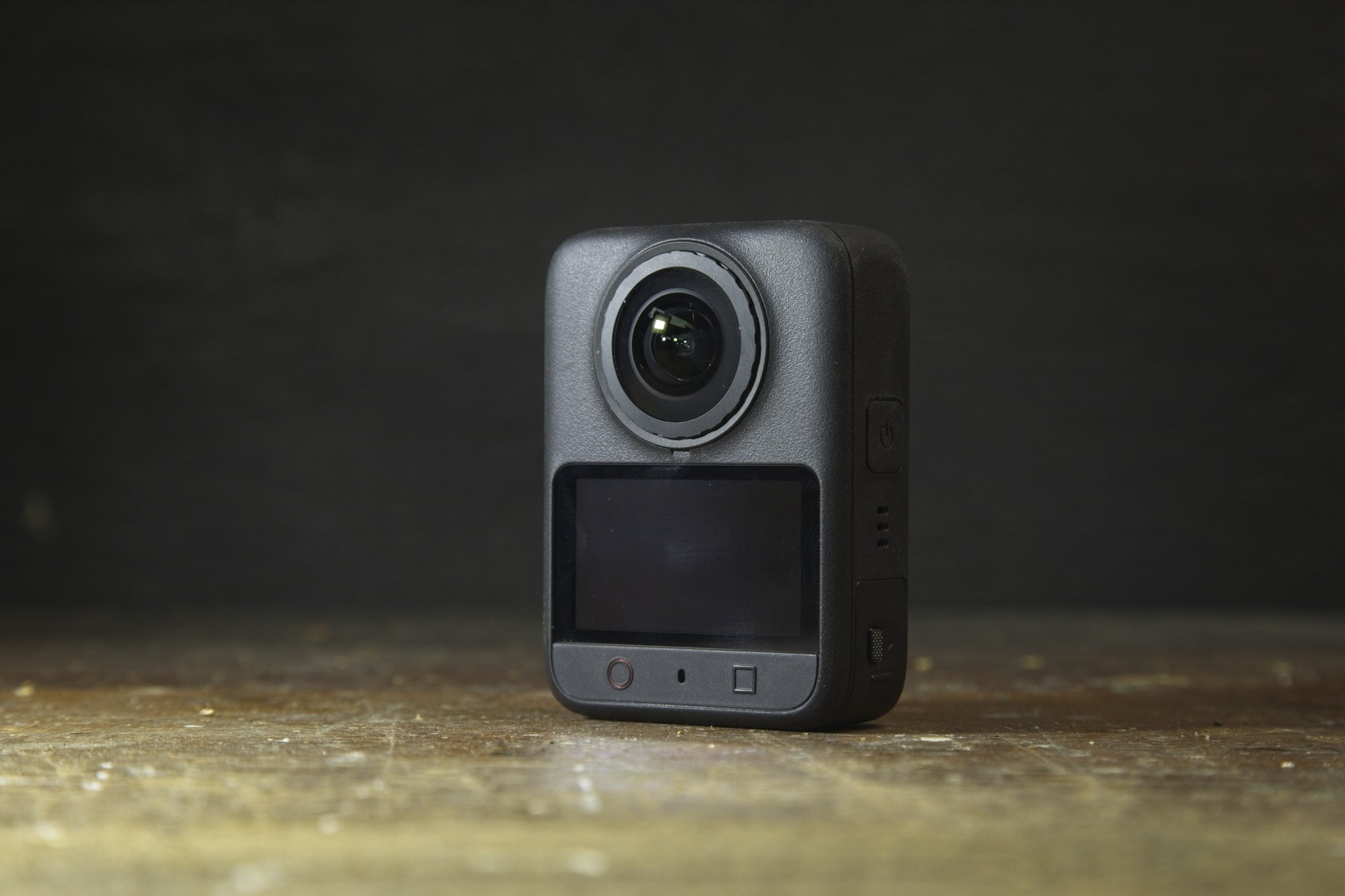
Table of Contents
- Image Quality
- Controls
- Replaceable Lenses
- SuperNight 2.0
- Dual Recording
- Spotlight Follow
- Mics
- DJI Studio
- DJI Mimo
- Gesture and Voice Control
- Accessories
- Osmo I vs Osmo II
- DJI Osmo II vs Insta360 X6 vs GoPro Max 2
Image quality
Video
The image quality on the Osmo 360 II is just excellent. DJI know cameras and know video well from their drones and other cameras. 360 cameras are a bit of a different beast with the manipulation you have to do to put the image together.
Most of the specs got a bump from the Osmo 360 I like 8K60 up from 8K50, sharper HDR, 64x slow mo, version 2.0 of SuperNight, and 1 more stop dynamic range.. The D-Log M with 10-bit color stayed, same with the 2.4 μm pixel size.
HorizonSteady and RockSteady have always impressed me and they continue to on this camera. I can be be hiking, riding on the motorcycle, or bouncing around in chopping water in the kayak and things are smooth and steady.
The 14.5 stops dynamic range (up from 13.5 with the previous version) really helps out in the dark areas. When it’s bright out there’s bound to be a dark area somewhere with a camera that looks straight up and straight down at the same time. It struggled a little bit when I was in dark trees with patches of bright hot sun coming through. The dark areas in an mostly light area still look quite good. The bright areas when it’s mostly very dark didn’t look as good around the edges of objects like trees.
I noticed sometimes there was the odd stitching issue with objects that are very close to the camera and direction to the side where the lenses meet. My fishing rod was split a little bit in some of the footage when it was close to the camera. Anything farther was seamlessly stitched together and was magically lined up.
8K60fps
8K60fps is a major bump in video for the II, edging out the 2026 Insta360 X6 and well ahead of the GoPro Max 2. The Osmo II can get quite hot on 8K60. It will first shut off the screen when it’s getting hot and then turn off completely to protect itself. How long that lasts depends on the temperature and how much air flow it’s getting.
I was able to get it to record 60 minutes inside with no airflow. It was about 18° Celsius with no air flow. I’d say that’s pretty good. You’ll get more if it’s cold outside with good airflow. The screen did turn off at 35 minutes to prevent overheating.
Images
Images are up to 120MP in jpeg with an option of HDR. Raw images are an option now but limited to 30MP. I’d like to see higher resolution in raw for editing later. The 8K Timelapses in v1 got upgraded to 16K in the Osmo 360 II. I don’t take still images as much with the Osmo but timelapses show everything in a completely different way.
Shooting Modes and Controls
The Osmo 360 II has a good set of different shooting modes. I like using the Panoramic Video the most with the Timelapses being really good in certain scenarios.
For 360 video and photo there is:
- Panoramic Photo
- Panoramic Video
- SuperNight
- Spotlight
- Pano Slow Motion
- Selfie Mode
- Vortex
- Timelapse
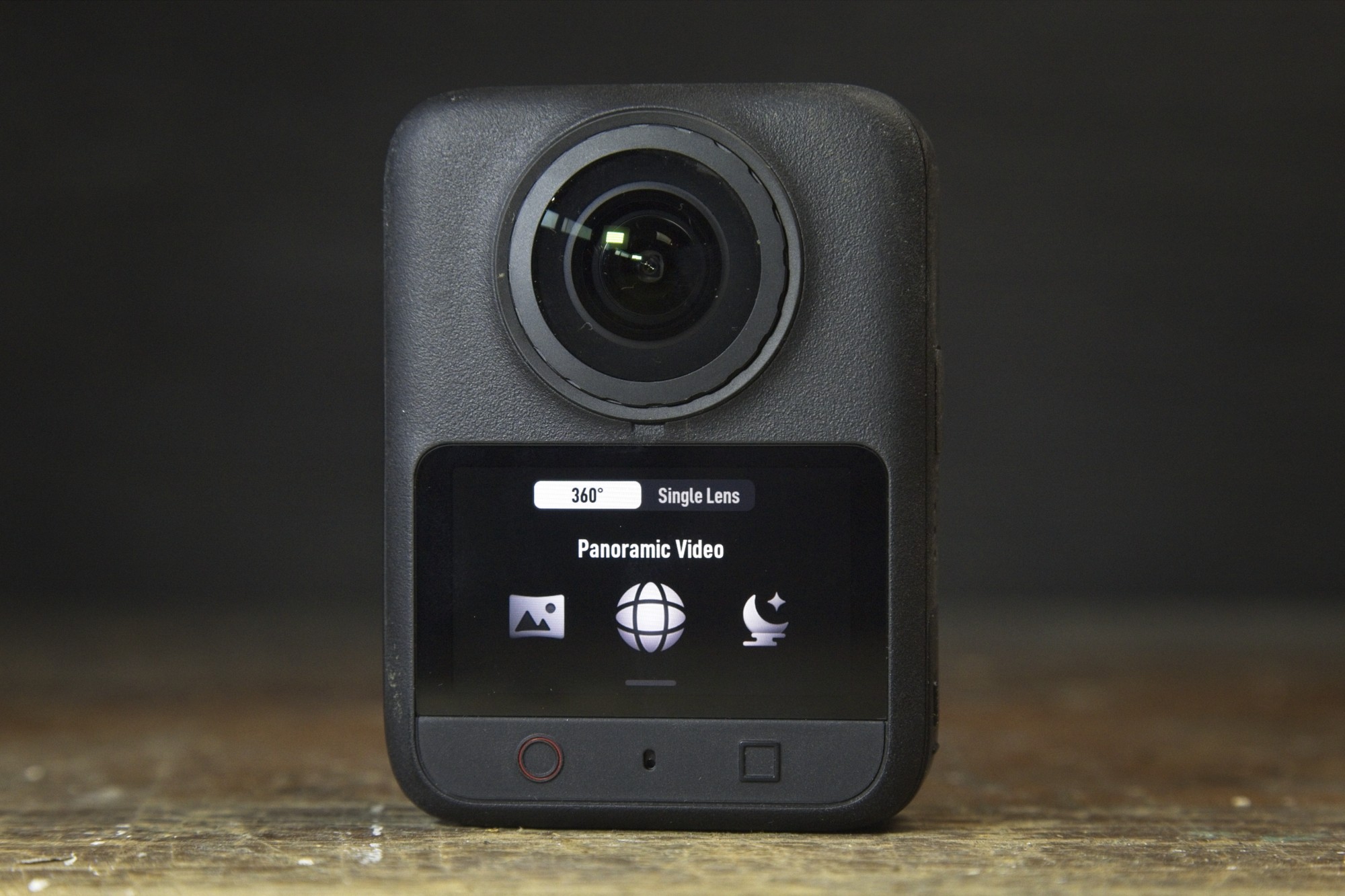
For Single Lens mode, there is:
- Photo
- Boost Video (up to 4K120fps)
- SuperNight
- Video (up to 4K60fps)
Quick Switch
A little icon in the bottom left brings up the mode menu and you can quickly pick a different mode from there. One tap on the power button also brings up the Quick Switch (QS) menu. The modes in this menu are editable in the settings.
SnapShot
The Record and Function button can go straight into one of the modes from off as well. In the SnapShot menu you can choose the functions.
Record button can do the last 360 function, Panoramic Video, SuperNight, or Hyperlapse.
Function button can do the Single Lens modes: Boost Video, SuperNight, Single Lens Video (front or back lens)
Any option enabled in the settings goes yellow so it’s easy to see.
Replaceable lenses
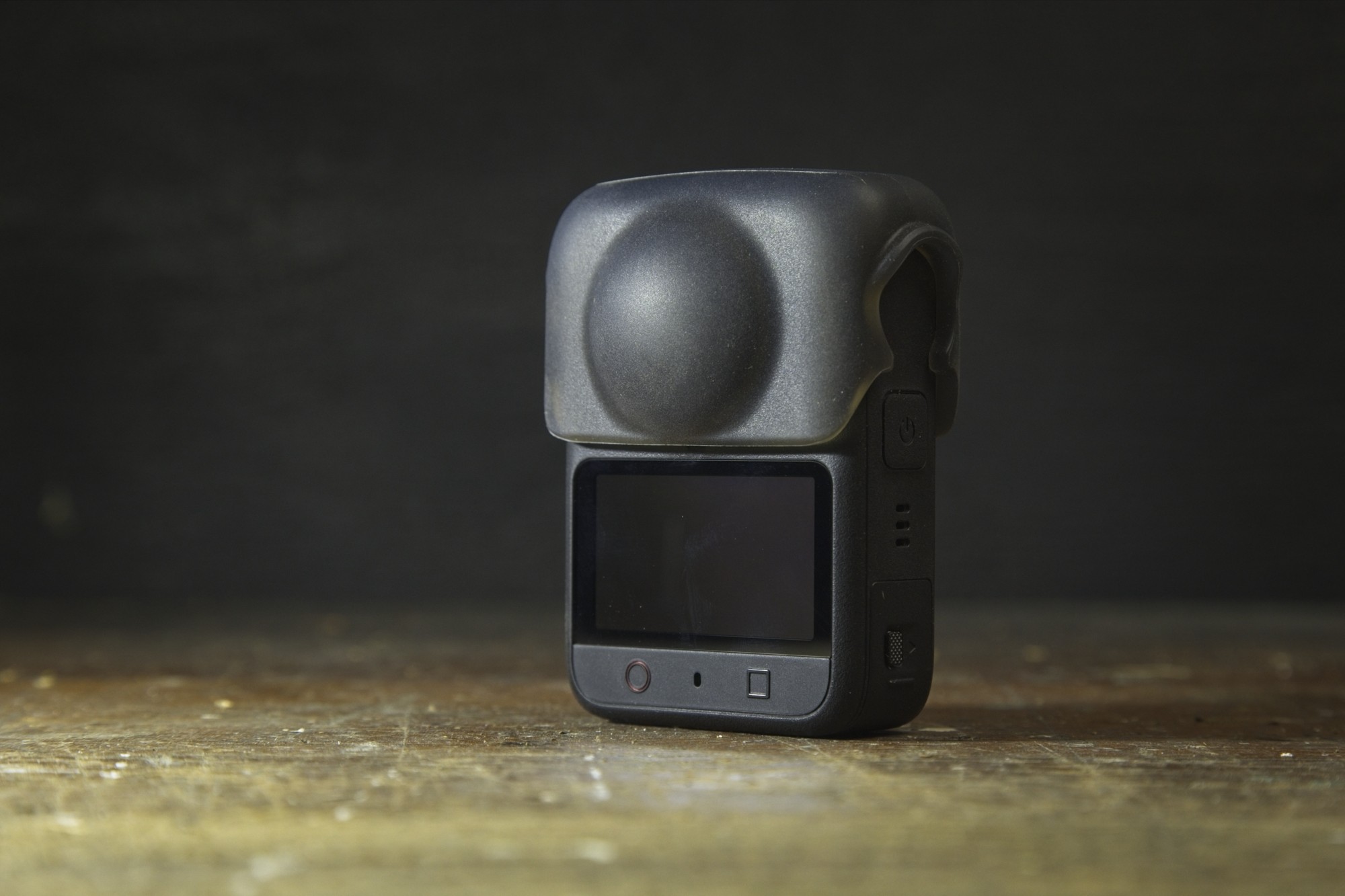
If you cracked or scratched a lens with the first Osmo 360, it had to be sent to DJI to be fixed.
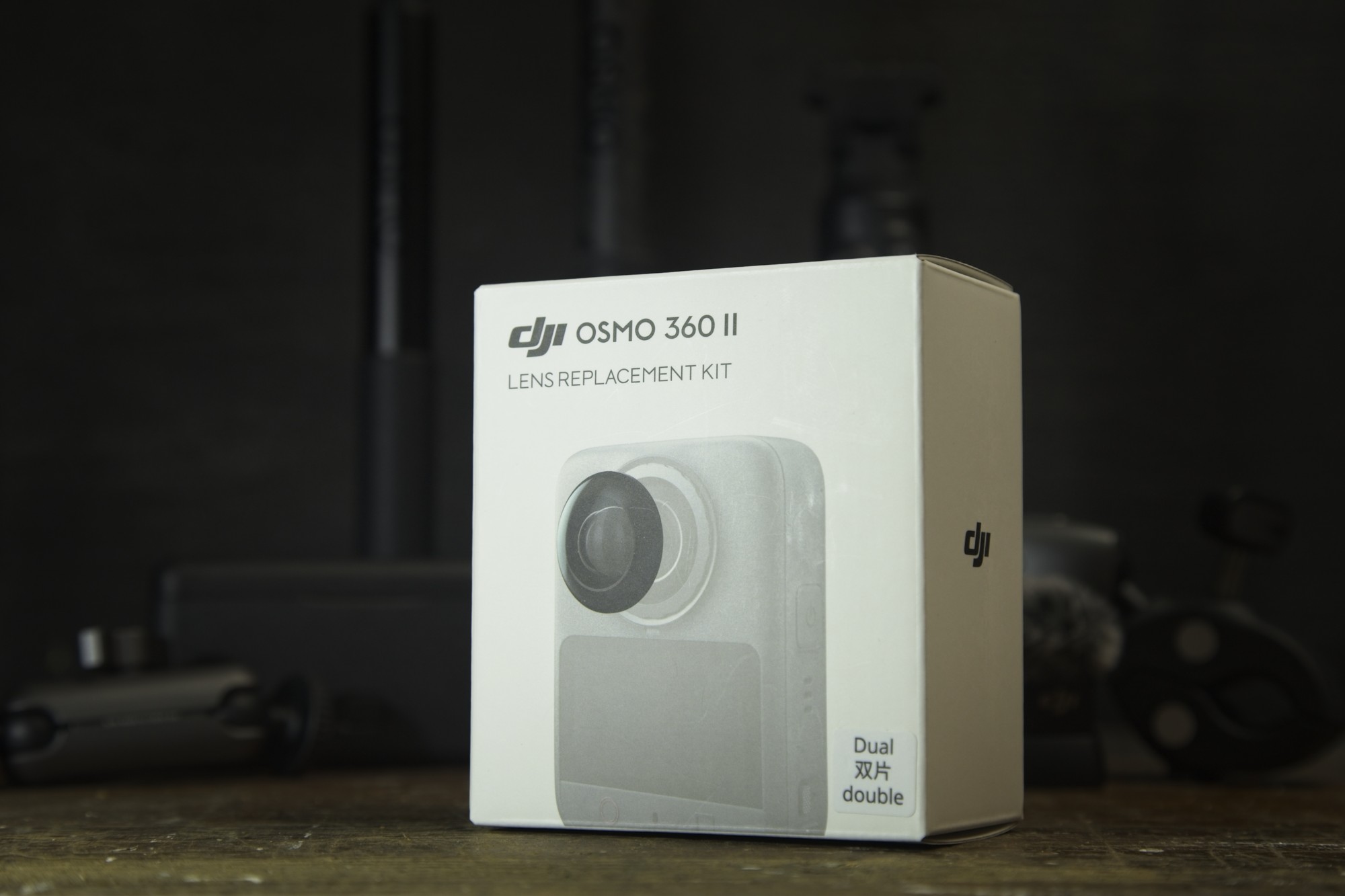
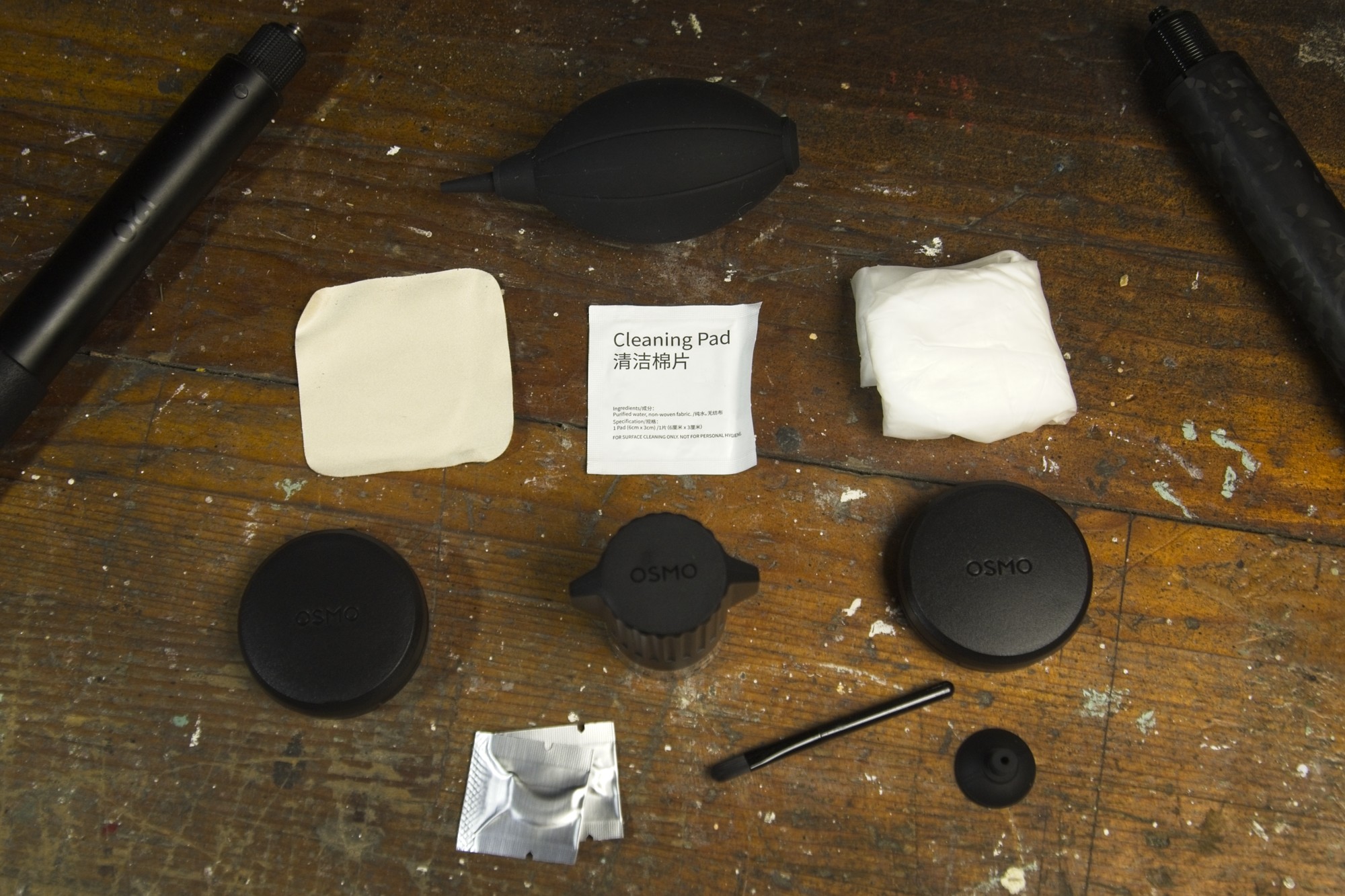
Now with the Osmo 360 II, the lens is replaceable and there’s a replacement kit. For $25 USD you get single lens and the tools to replace it. For $35 USD you can get 2 lenses.
The lenses also have a tougher ion sputtering coating so they are harder to scratch. This process adds extra ions to the lens material, making it denser without affecting light passing through.
Replacement is just unscrew the scratched lens with the tool in the kit, screw on a new one and run calibration. DJI has some easy instructions.
SuperNight 2.0
SuperNight 2.0 is a lowlight mode for the Osmo 360 II. It’s basically the updated version of SuperNight on the first version. It uses the faster processor to reduce the noise in dark areas or dark parts of high contrast scenes.
It’s available all the way up to 8K60. Faster shutter speeds at night will reduce blur more but lower shutter speeds will let in more light. Depends on what your situation is. D-Log M isn’t available in SuperNight
Dual Recording
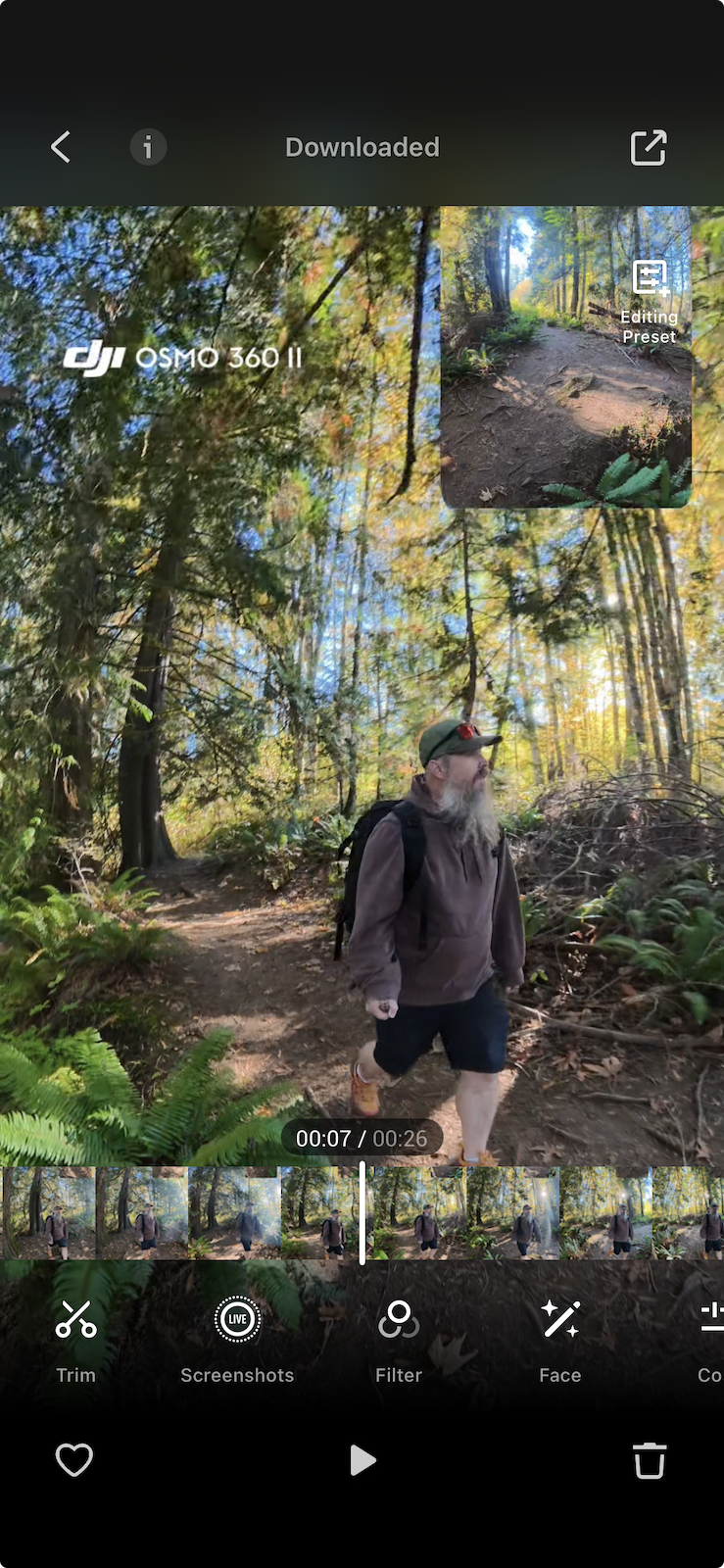
One of the editing modes in the DJI Mimo app is called Dual Recording. It can do picture in picture or dual screen using 2 frames of the same clip. It can do one pointed down the trail where you are going and back at you exploring the area. I have a question in with DJI on how to reframe the secondary clip. It seems to be locked. It’s easy to reframe the main clip view to any angle just like normal in the app.
As far as I can see this option is only available in the Mimo app. DJI Studio doesn’t have it yet.
Spotlight Follow
When you’re moving all over the place, especially on a bike or little boat, the view in the camera will turn around as you move. If all you want to do is have the focus on you or another subject in the frame somewhere, it’s not hard to add keyframes in DJI Studio or Mimo to make sure the focus stays on you. But you don’t have to manually do it.
Spotlight Follow lets you pick the subject of the clip, and it will automatically keep the focus on that person or thing.
In the camera, there’s a 360 video mode called Spotlight Follow. It will try to detect something in the frame to follow. If it sees a face, it will keep the focus or spotlight on that person through the whole clip. Then that clip comes focused out of the camera to use in Mimo or DJI Studio. You can always reframe it later if you want.
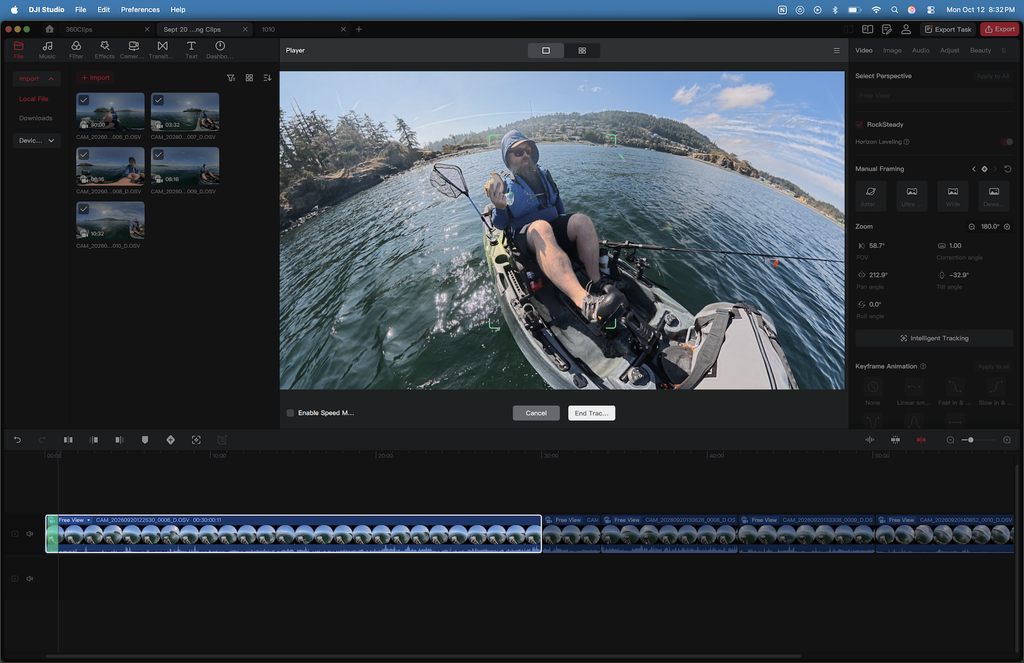
If you didn’t enable spot light in camera, you can just do it in the DJI Studio. In Studio it’s called Intelligent Tracking. After clicking a clip and Intelligent Tracking you can pick what the subject is and Studio will scan through reframing automatically to where ever that subject has moved.
If you are moving and turning a lot in your footage the camera will stay framed to the original direction it started recording in. This doesn’t help when you want to keep yourself or something else in the frame. Spotlight just keeps your subject framed without all the manual movements and key frames.
Microphones
There are 4 mics on the Osmo 360 II, 1 of them windproof. They all work together to get spatial audio from all 4 and then using the windproof one to isolate the wind noises. All this together gives some pretty impressive audio.
I was surprised with the audio straight out of camera, and how rich it was. The audio on action cameras is often not great so it’s nice to see that you don’t really need external mics.
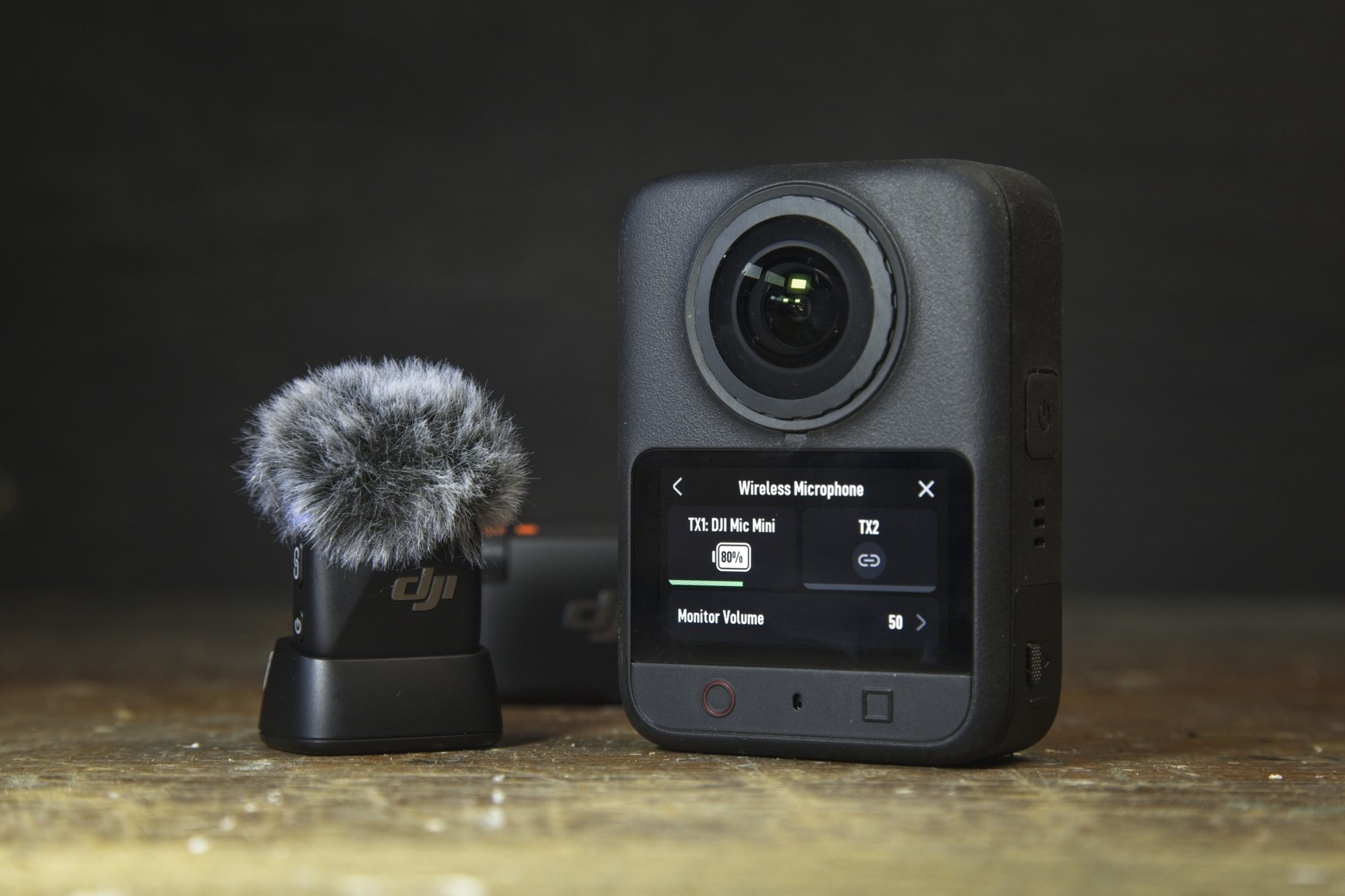
There are instances where you’d want to use external mics. If it’s windy, you’re farther away from the camera, or there are loud engine noises like on a motorcycle, then it’s nice to have external sound. The Osmo has 2 channels that you can can pair mics with.
I tried with my DJI Mic Mini and pairing was quick. Power on the mic, press the pair button and it showed on the camera ready to connect. Battery and volume for the mic show on the camera as well.
If you don’t have any mics, you can pair bluetooth headphones with them as well. I tried with my Jabra Elite 10 Gen 2 earbuds and it was easy to pair, just like on a phone. The audio from the mics on these Jabra’s is not great but if you had headphones with better mics then you can get great audio just from that.
There is a built-in audio backup option as well, that’s off by default, that records camera audio as well as mic audio. If you’ve ever done a bunch of recording and realized the mic wasn’t working or it was in a windy spot it’s nice to have a backup. These get saved to the memory as a wave file.
Waterproof
Without a case, the Osmo 360 II is waterproof to 10 metres or 30 feet. With the case it can go down to 50m or 160 feet.
Because the software that puts all the images together works with air around the lenses, the naked camera doesn’t do much on it’s own. To get good images underwater, you’ll need the case. There is an option to enable stitching with the waterproof case on as it’s different than just having the naked lenses.
I don’t have a case yet so I can’t comment what it’s like to use with that. I did try it underwater a few times on the shallow water at the beach and under a waterfall just to see what it would do. Knowing it’s completley waterproof is nice for those wet days or when you want a shot where the camera comes out of a tidepool or waterfall.
I’ll update with more if I can get my hands on a waterproof case.
Storage
360 videos take up a lot of space. I’ve got terabytes of video and photos already but 360 take this to a whole new level. Recording at 8K30 can be up around a gigabyte a minute at high bitrates. You can reduce the quality if you want to save some space.
There are 2 options for storage, the built-in storage or a microSD card.
There’s 105 GB built in so even if you forget a card, you can still get some shots. At 8k30, that’s more than a battery or 90 minutes of recording.
There’s also a microSD card slot that will take up to 1 TB cards.
You have to pick which storage you are using in the settings. If you have a big card, the 105 GB is a good backup. Recording doesn’t automatically switch from one storage to another so keep an eye on your space.
Screen
The screen stays the same as the 2″ touchscreen on the first version. I found the touch screen responsive, snappy, and easy to use. Some of the touchscreens on action cameras can be laggy and hard to hit the right buttons.
Out in the kayak on the ocean, the wavers were coming up over the front of the boat and getting the camera wet. I wasn’t worried about the water as it’s plenty waterproof but the screen was a little less accurate when it had water droplets on it. A quick wipe and it was good to go. Connecting with your camera and framing or controlling like that might work better when it’s wet.
DJI Studio
DJI Studio is a desktop editing software to put organize and edit 360 video. It isn’t directly part of the Osmo 360 II but if you want to do anything with your video you’ll need a 360 video editor.
I’ve used a lot of software before being a web developer and IT project manager. DJI Studio is nicely laid out and easy to navigate. I’m not an advanced video editor, mainly using Davinci Resolve to edit basic videos and Reels. I imported the video, reviewed my footage and started editing a couple projects without looking up any instructions.
Importing
After plugging in the camera, downloading clips to your machine is easy. Select the ones you want and click download. It will ask you where you want to put them. It warns you if you don’t have enough space. I try to delete anything here that isn’t good to save space.
I regularly select all from a session shooting. You can select all with Shift click but it would be easier if there was a button to select the whole day.
The camera has to be on for the app to see it. It charges while it’s plugged in so doesn’t use up the battery to download footage.
Spotlight Follow
Like I mentioned above with Spotlight Follow, the option is called Intelligent Follow in DJI Studio.
It lets you put a box around your subject and then it scans through moving the focus to the subject you’ve highlighted for the whole clip. It scans at a little faster than actual time in the video but it does take a bit to move through long clips. You have to select the subject for each clip if you’ve got multiple.
If you know you want to track something and you have battery to spare, enabling in the camera is better and then it’s already done when you import. You can just remove the track and reframe manually too.
AI tools
DJI Studio has a few AI tools baked in. I’d imagine this number will increase the as the updates come.
- Intelligent Tracking – tracks your selected subject for Spotlight Follow
- Frame Interpolation – generates extra frames so you can slowdown the slo-mo even more.
- SuperNight enhancement – cleans up noise in the lowlight areas
Editing
Editing is easy on Studio. It’s drag a clip onto the timeline, clip it to the length you want, add any effects, repeat.
The performance in Studio is a bit slower than I’d like it to be on an M4 Mac Air. It’s pretty good but there are times where it’s loading something and lags a bit.
I haven’t been through all of the functions and keyboard shortcuts yet, there are so many. Q and W keys to trim left or right are very helpful. These are common keys that I use all the time and are usually some crazy keyboard shortcut in other applications.
One you’re done editing or to see your edits, it’s easy to export with different settings. There’s an export queue that runs in the background.
There are a few things that would be helpful it doesn’t have.
To organize footage for the day and create a quick edit, I make a timeline for the day. It’d be nice to be able to copy clips from this to other projects.
When trimming on the timeline the play head stays in the same place in the timeline. I prefer how apps like DaVinci moves the playhead to be at the same place on the clip you just trimmed.
A smaller issue but one that might help organization, it’d be nice to see some of the metadata on each clip in the media window. I was specifically looking for something 60fps and had to click on each clip to see.
DJI Mimo App
I really like the DJI’s Mimo app for IOs and Android. I’ve used it a lot when editing any video on my iPhone, not just DJI drone or 360 footage. It’s clean, easy to use, and has lots of videos to learn more. I rarely have enough space on my phone download and edit big videos so I’m usually on my Mac Air or Windows desktop but if something cool happened in a clip I’ll take it and post it right away through my phone. Some features like Dual Recording are only available in the Mimo App.
Importing
Importing is easy with Mimo. As soon as you’re in the app and the camera is on it will ask you to connect. You can enable the NFC tap area as well and just tap the bottom of the screen with your phone when the camera is one. It will ask if you want to go to the app downloads.
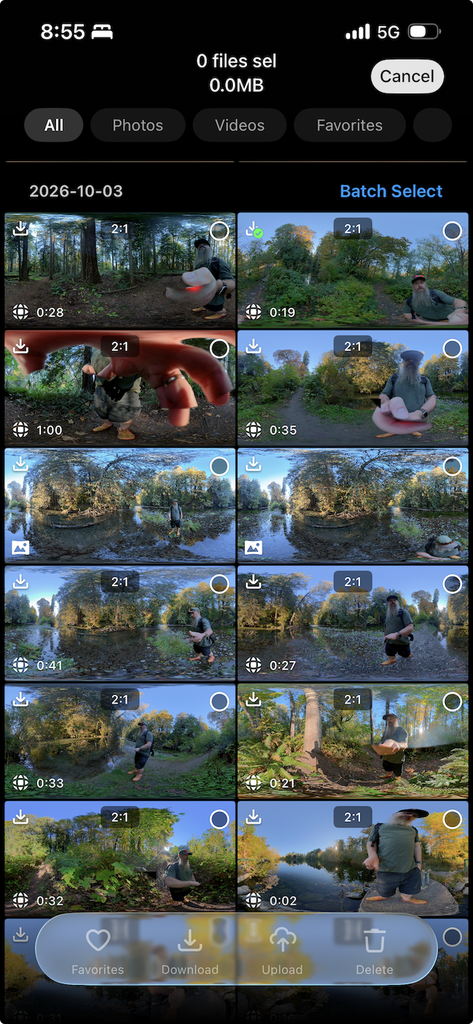
Here you can review clips, download single ones from the list screen or the clip screen, or select entire days and download all the clips.
Reviewing footage
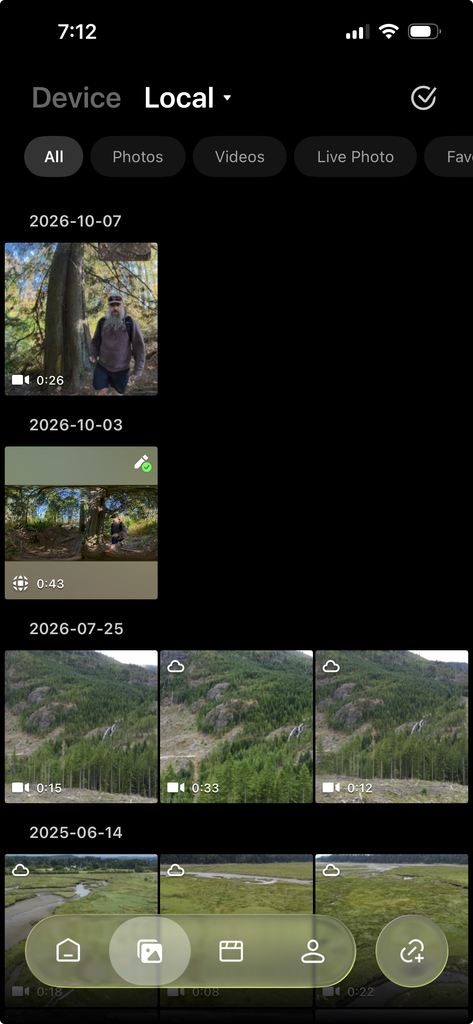
Footage is imported to the Local tab. It’s grouped by day which is a nice way to look through footage. A quick click and you’re in a clip and can pan around to reframe. On my iPhone 14 it’s quick, no lag, and easy to get to basic options.
Camera Controls
With all the different mounts and places you can put the Osmo 360 II, sometimes it’s a pain to get to the screen to start recording, set a different mode or check the framing.
When connected to the camera, you can control the camera through the app.
Options:
- Media on camera
- 360 to single lens mode
- Record
- Reframe to other lens
- Save or pick a custom setting profile
- Modes (Photo, Video, SuperNight, Spotlight, Selfie, Slow motion, vortex, Timelapse, Hyperlapse)
- Color profile
- Resolution
- Manual settings (EV, Shutter Speed, Max ISO)
- Grid, White Balance, Color Mode, OverExport Alert, Loop Recording (keeps the last 5 minutes or 1 hour)
Editing
I know a lot of people edit videos on their phone but I prefer on a computer. The screen is bigger and I never have enough space to download clips to my phone. I whole computer is a lot to carry though and a phone is a lot more portable.
That said the Mimo app can do a lot. Basic trimming of clips is easy, as well as adding filters, adjusting color, cropping, rotating, stabilization, and adding sports dashboard data.
Dual recording is one of the features that’s only on the Mimo app. You can do a picture in picture from the same clip.
Gesture and Voice Control
The buttons aren’t the only to start and stop recording on the Osmo 360 II.
Gesture Control
Gesture Control is starting and stopping recording by holding up your hand.
By default Gesture Control is disabled. In the Control Centre, pick Gesture Control > Enable to turn it on. You can enable it for just starting recording or both starting and stopping.
To trigger it, hold up your hand facing the camera. I found it worked best with fingers together and out to the side a bit, not in front of your body. It takes a second to register so flipping your hand up and down won’t trigger it. It works from the bottom of the selfie stick as well.
Voice Control
Voice Control is just like it sounds, telling the camera to Start Recording or Stop Recording.
It needs to be enabled first. Swipe down > swipe right > voice control section (with little face icon). It can do English or Mandarin Chinese.
There are 4 phrases, it will respond to:
- Start Recording
- Stop Recording
- Take Photo
- Shutdown
It’s very quick to do the action. It started recording or started shutdown before I was even down saying it. The phrase has to be exact. ‘Take a photo’ doesn’t work but ‘Take photo’ does. There’s no voice training so anyone saying these phrases in the vicinity will trigger it.
If you have a mic attached, the commands work through the mic as well. It might be hard to tell if the recording as actually started if it’s noisy around you.
Twist Control
Twist Control is a cool way to start recording if you have the camera on a selfie stick. Again, it has to be enabled in the control centre.
Just twist the selfie stick twice to start recording, stop recording or take a photo. The twist has to be more than 45°. I thought the 45° might be tough but it’s not hard. A couple little twists and it’s going.
It would be great with gloves on or it’s up on the end of a 2.5m selfie stick where it’s harder to reach.
Battery Life
I’m used to poor battery life on cameras. It’s not great on my current mirrorless and action camera so hike with a bunch of batteries. The 100 minutes DJI states on the Osmo 360 II was impressive. And that 100 minutes isn’t just at 1080p or 4K, it’s at 8K!
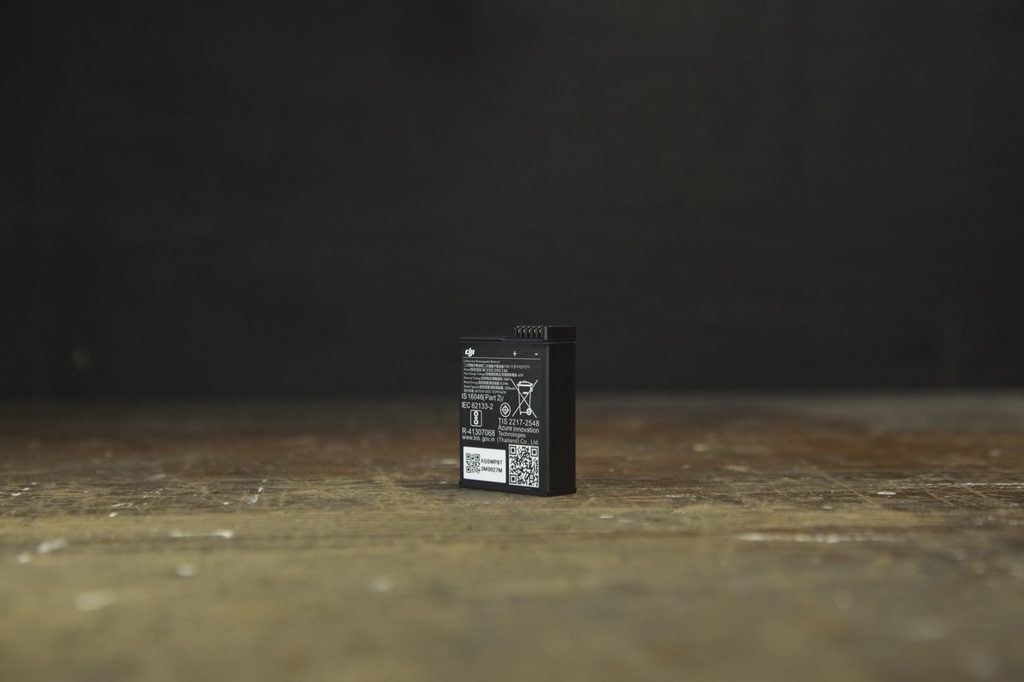
The Osmo 360 II comes with the Extreme Battery Plus which is 2150 mAh compared to the 1950 mAh Extreme Battery in the first version and the Action 6. They’re exactly the same size and interchangeable. The Osmo 360 II seems to be doing more processing than version 1 and needs that bit bigger battery.
With the regular settings I use most days (8K30, RockSteady, Wifi, Screen timeout 1 min), I got 90 minutes recording. Screens typically use a lot of battery. I didn’t touch the camera so the screen was off for most of the test. If you are using it with screen on, battery life will be less.
With 8K30, stabilization off, screen off, wifi off I was able to get 102 minutes. 10 more minutes with all these things disabled is pretty good if you need a bit more time. Unless I’m scraping by with battery, I usually leave them on.
When plugged in the battery charges in the camera. A little green bubble on the screen when it’s off and charging.
Endurance mode
Endurance mode can be enabled if you really need to stretch your batteries. It reduces background tasks and processing quality to increase the recording time up to 120 min. It leads to more noise in dark areas so I try to leave this off as much as possible. It only supports 30 fps or lower.
In testing I got 120 minutes with 8K30, RockSteady off, wifi off, screen off, endurance mode on.
Charging
Charging is quick with a 30 watt PD (Power Delivery) charger. I tried it with a regular the 5-watt phone charger and it takes considerably longer.
DJI says they get 80% in 22 minutes and 100% in 50 minutes. I didn’t quote get the 80% in 22 minutes in testing but I did get 100% faster.
Test results:
- 34% in 10 mins
- 64% at 20 mins
- 90% at 30 mins
- 100% at 37 mins
I’m more than happy with 100% in 37 minutes. I used an 35 watt PD charger from an M4 Macbook Air that conveniently has 2 USB-C ports.
Battery life on 8K60
Recording on 8K60 uses battery faster. I was able to get 60 minutes recording on 8K60.
Some of that is to due with the heat it generates. I was getting overheating warnings about 20 minutes into recording. I was in my house at about 18 C with no airflow though so outside in cooler weather it may go for longer. Warmer weather will be shorter. I’ve seen online in hot weather it may only go 20 minutes. At that point it won’t be limited by the battery.
Accessories
Like all action cameras, accessories are super important to using the camera. It’s tough to use it without. If you know you are getting some of accessories anyways, try to get a combo as it’s cheaper.
360 cameras pair well with selfie sticks. They are automatically removed in the processing so it looks like someone else is filming you. It doesn’t work well when you just hold with your hands.
The Osmo 360 II comes with a 1/4″ thread on the bottom for some of the mounts. Others use the 2 pronged action camera mount. The Dual Direction Quick Release adapter can connect to this type.
1.2m Invisible Selfie stick
The basic selfie stick. They come in different lengths. Watch out for which mount it is, either the 1/4″ screw thread or the 2 prong mount. Sometimes they have both.
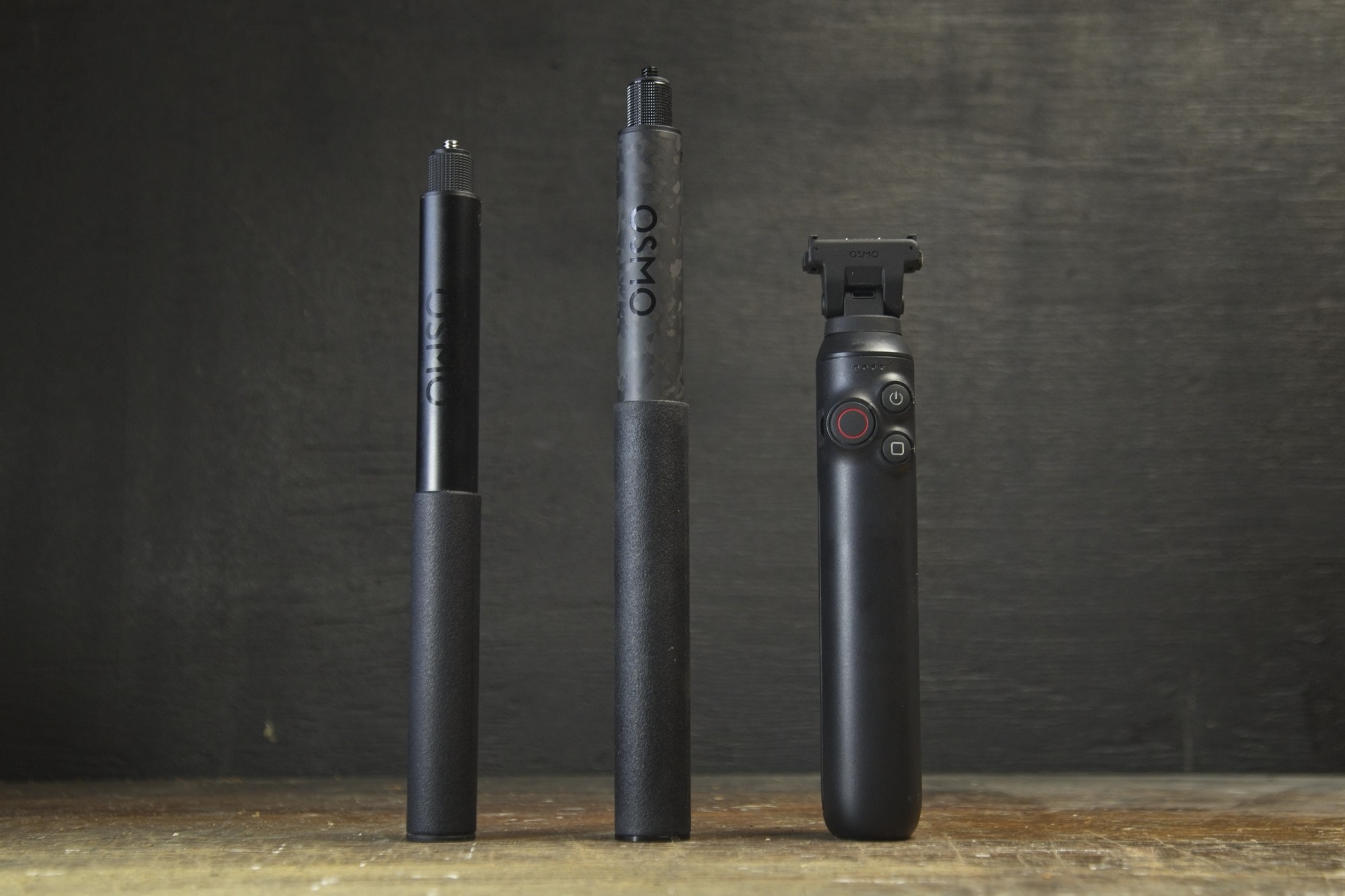
1m High-Strength Carbon Fibre Selfie Stick
Carbon Fibre is stiffer and doesn’t vibrate as much so if you’re looking to mount to a vehicle, this might be a better choice than the aluminum ones.
2.5m Selfie Stick
If you need a longer selfie stick, 2.5 metres might do the trick. With your reach and another 2.5 metres, you can get some cool shots. At this distance, they 360 footage starts to look like drone footage which is handy where you can’t fly drones.
Battery Extension Rod
This is 90 cm selfie stick with a battery inside. It can get up to 4.5 hours more recording. At the bottom, where you hold, there are Power, Function, and Record buttons so you don’t have to reach up to the camera. The end is a dual direction quick release mount that can lock straight or tilt.
Dual-Direction Quick-Release Adapter Mount
Unscrewing the camera from mounts can be tedious when you’re switching angles a lot. There are Dual-Direction Quick-Release adapter mounts available. These clip to the bottom of the camera and pop off by pushing the clips on the side. One version has 1/4″ thread adapter, the other a 2 prong action camera mount. Make sure both clips are pushed in properly, otherwise it’s just the magnet holding the camera.
See two prong version on DJI.com
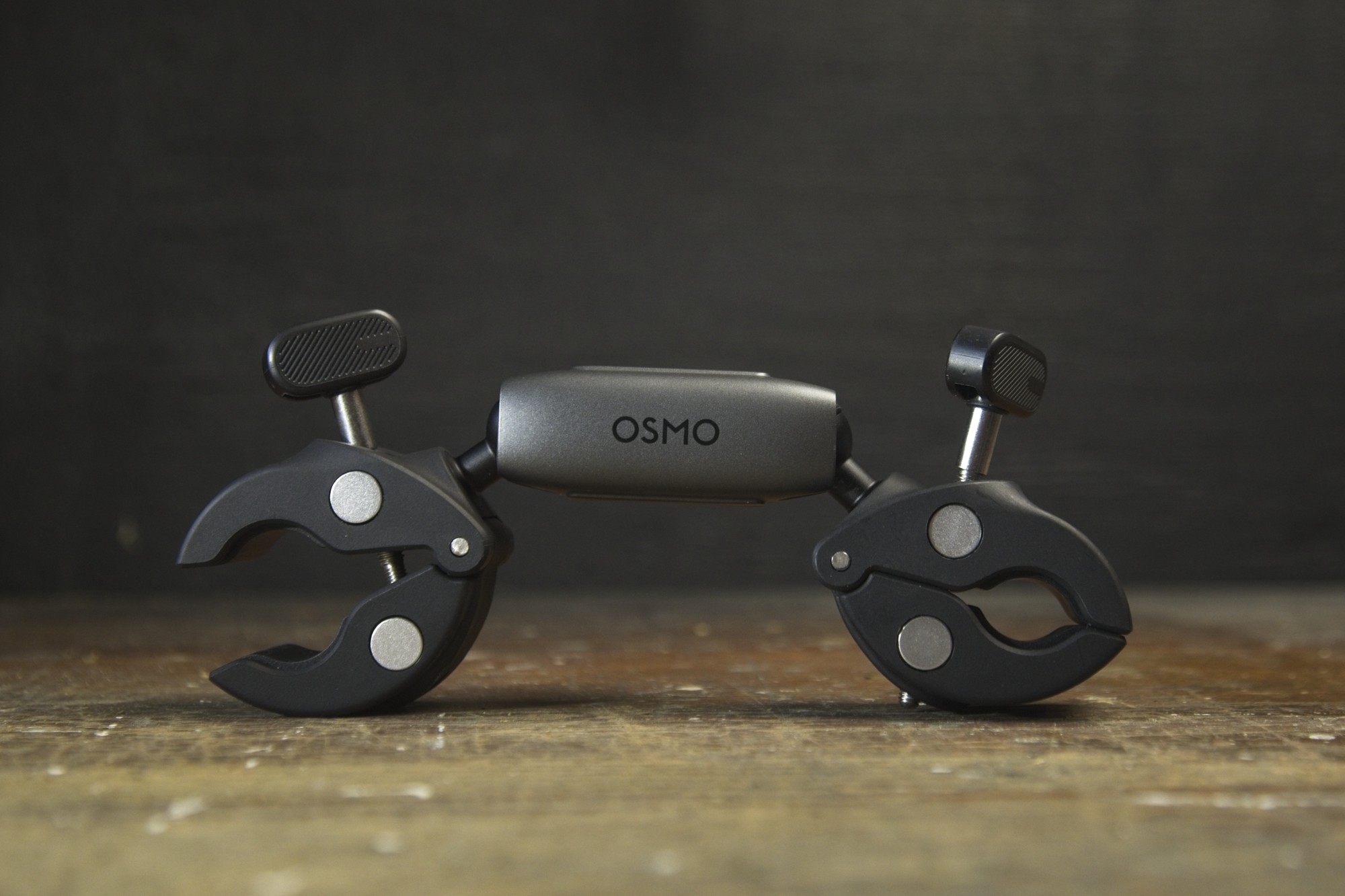
Dual Heavy-Duty Clamp
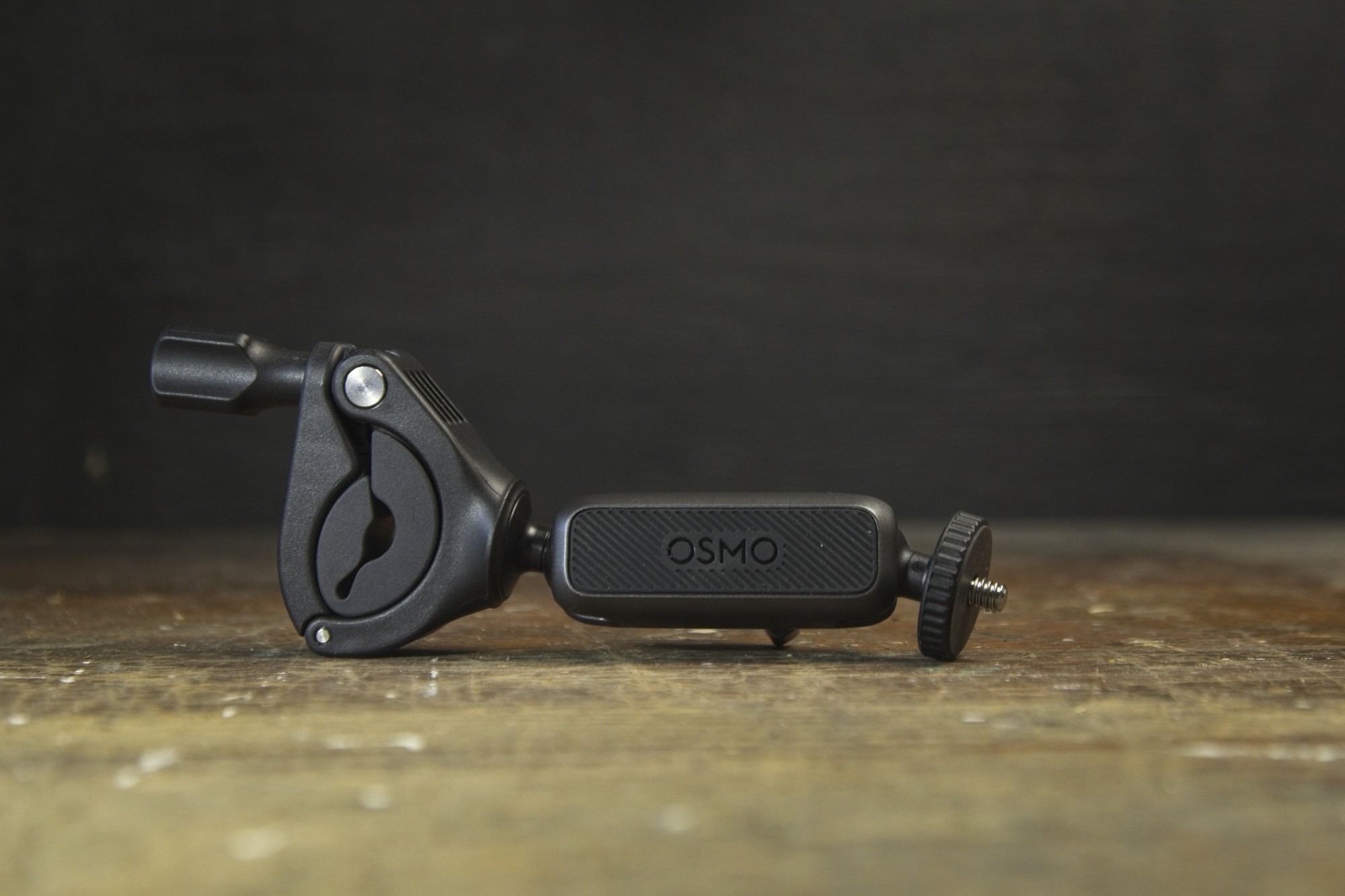
These ball and socket clamps are great for mounting to vehicles or holding the selfie stick. When tightened they’re very stiff.
This one comes with 2-prong and 1/4″ thread mounts as well for non-selfie stick mounting or to use with a second clamp to hold the selfie stick.
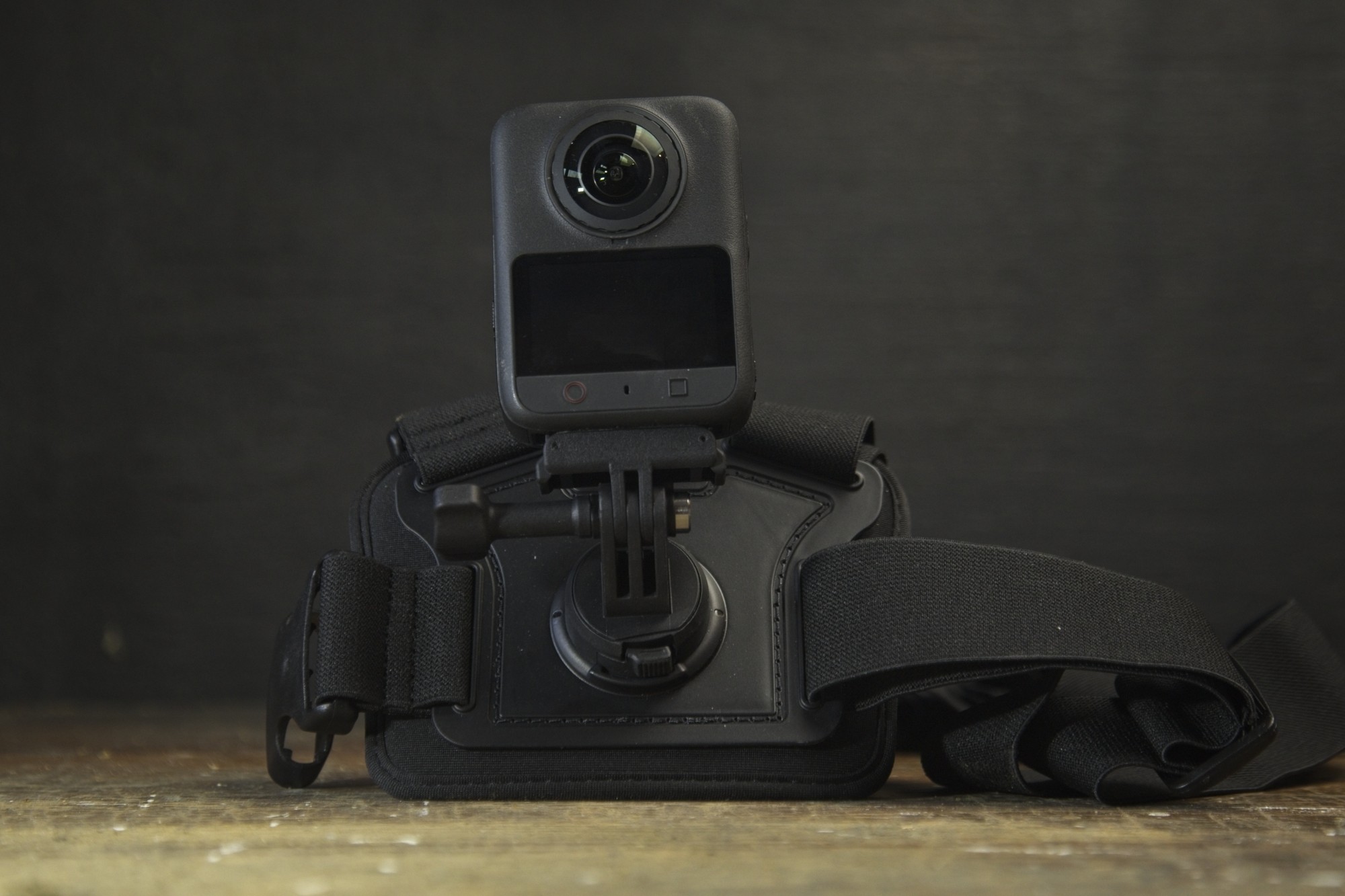
Biking accessory Kit (Chest Mount and Handle-bar Mount)
A lot of the accessories come with a couple mounts. This one comes with a small clamp and a chest strap that has mounts on the front and back. Both mounts are 2 prong adapters. There are a few kits for bikes that mount behind the seat, under the seat or off the handlebar stem.
Lens replacement Kit (1 or 2 lenses)
Now with the 360 II the lenses are replaceable. There are kits with 1 or 2 replacement lenses. It comes with the lenses, a tool and suction cup to remove the lenses, an air blower, and cloths for cleaning.
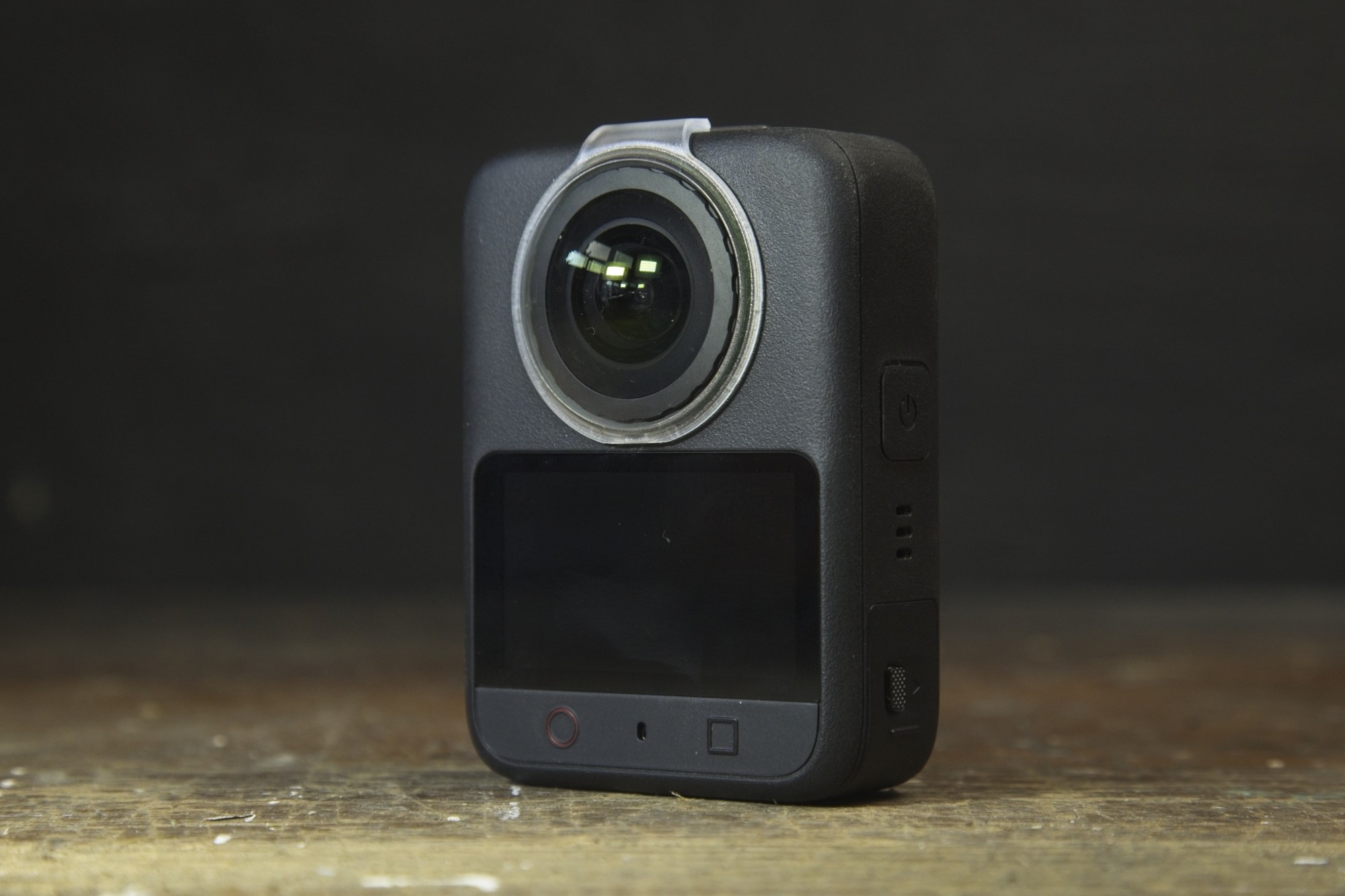
Lens Protectors
To try not to scratch your lenses in the first place, there are clear lens protectors that clip on. To stitch the video properly, make sure the lens protector mode is on.
Multifunctional Battery Case
There’s never enough batteries with action cameras. The Multifunctional Battery Case can hold 3 batteries and 2 SD cards. It can charge 3 batteries in 2 hours with a 30 watt USB-C PD charger. It can also charge your phone from the batteries in the case. Doesn’t come with batteries but some of the combos come with 3 batteries.
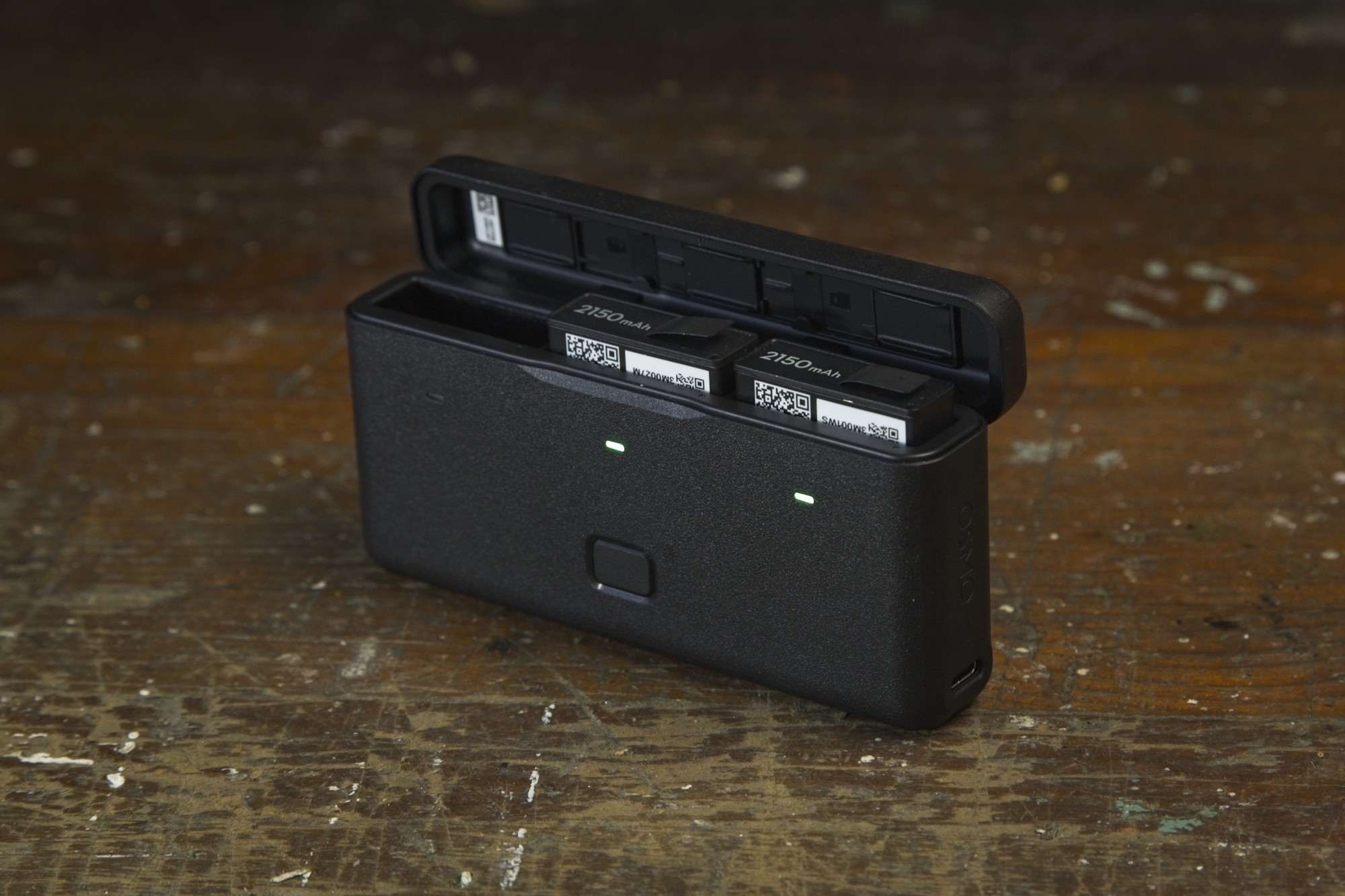
Extra batteries
The Osmo 360 II gets 90-100 minutes recording with most settings but often that’s not enough so you’ll need more batteries. You can buy them separately. Make sure to get the 2150 mAh version if you can.
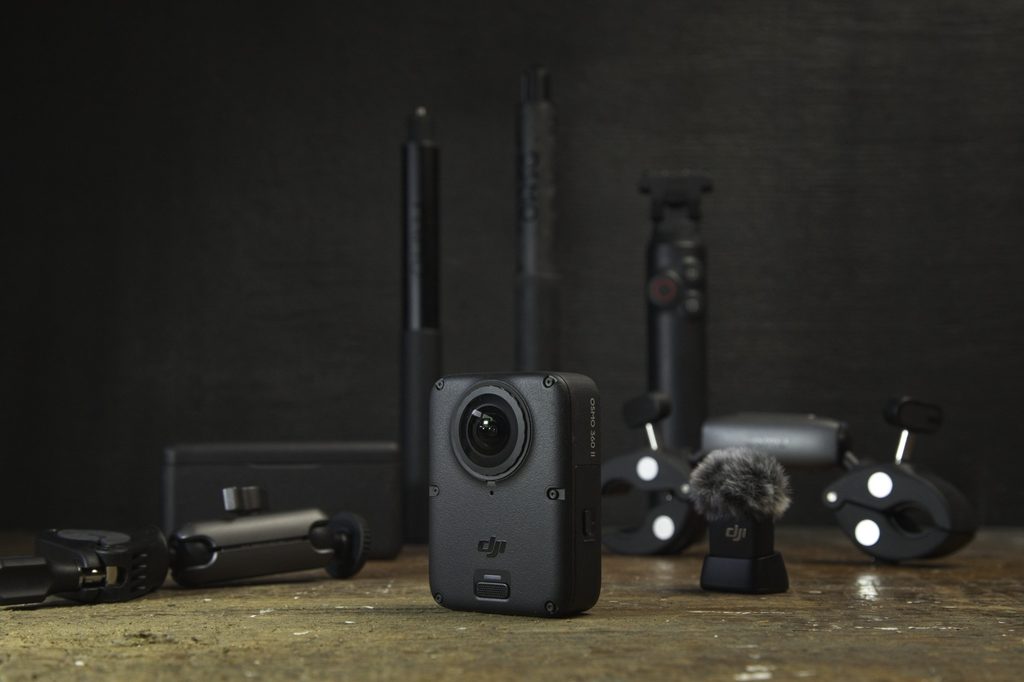
Thse are just some of the DJI accessories and mounts but there are lots more available from third parties as well. Amazon is full of them.
Spec Comparison: Osmo 360 II vs Osmo 360 I
The Osmo II is similar to the Osmo I in almost every way. The standout differences being:
- replaceable lens covers
- upgraded processor
- 14.5 stops dynamic range
- 8K 60 fps 360 video
- 16K 360 timelapse
- AI SuperNight 2.0
- Larger battery
- Dual Recording, Spotlight Follow, NFC Tap Area
The camera itself and batteries are the same physical size.
| Osmo 360 II | Osmo 360 I | |
| Release date | Sept 3 2026 | July 31 2025 |
| Sensor | Square 1/1.1 HDR | Square 1/1.1 HDR |
| Touchscreen | 2 inch | 2 inch |
| Internal storage | 105 gb | 105 gb |
| Dynamic Range | 14.5 stops | 13.5 stops |
| Replaceable lens covers | Yes | No |
| 360 Video | 8K 60fps 4K 240fps | 8K 30fps 8k 100fps |
| 360 Photo | 120MP HDR | 120MP |
| RAW/DNG Support | Yes | No |
| 360 Timelapse | 16K | 8K |
| Slow Mo Pano | 8x (in camera) 64x (with DJI Studio frame interpolation) | 8x |
| Vortex | 8K 120fps | 6K 120fps |
| 10-bit color | Yes | Yes |
| D-Log M | Yes | Yes |
| AI SuperNight | 2.0 | 1.0 |
| Voice Control | Yes | Yes |
| Gesture Control | Yes | Yes |
| Pixel size | 2.4 μm | 2.4 μm |
| Audio Mic | 4 mic array (1 windproof) | 4 mic array |
| Battery life | 100min at 8k 30fps | 100min at 8k 30fps |
| Fast Charge | 80% in 22 min | 80% in 22 min |
| Bitrate | 220 Mbps | 170 Mbps |
| Min Temperature | -20°C | -20°C |
| Magnetic attachment | Yes, Dual Direction | Yes |
| Waterproof | 10m (50m with the case) | 10m (50m with the case) |
| 1/4″ Thread | Yes | Yes |
| Price | $549.99 USD (Standard Combo) $699.99 USD (Adventure Combo) | $571 USD (Standard Combo) $678 USD (Adventure Combo) |
| Other Features | Dual Recording Sports Dashboard NFC tap area Spotlight follow OsmoAudio DaVinci Resolve plugin | Sports Dashboard OsmoAudio DaVinci Resolve plugin |
Compared to the Insta360 X6 and GoPro Max 2
There are a few other 360 cameras out there, namely the Insta360 X6 and the GoPro Max 2. Insta360 is regularly releasing new cameras and updating software. GoPro is having a bit of trouble at the moment but has just launched their new Mission series with external lenses.
| DJI Osmo 360 II | Insta360 X6 | GoPro Max 2 | |
| Release | 2026 | 2026 | 2025 |
| Price | $571 USD | $699 USD | $299 USD |
| 360 Video Resolution | 8K60fps | 8K50fps | 8K30fps |
| Slow Motion | 8K60fps 4K240fps | 8k50fps 4K200fps | 5.6K60fps 4K100fps |
| Waterproof | 10m | 20m | 5m |
| Battery Life | 100 minutes | 140 min | 90 min |
| Replaceable lenses | Yes | Yes | Yes |
| Internal Storage | 105gb | 47gb | None |
| Weight | 183g | 196g | 195g |
| 10-bit color | D-Log M | I-Log | GP-Log |
| External Mic | Yes | Yes | No |
Final Thoughts on the DJI Osmo 360 II
Entering a new market like drones or 360 cameras is tough. Many have tried and failed. DJI is making it look easy. With all their drone and camera experience the first version of their Osmo 360 was a serious competitor to the Insta360 X series.
Quickly turning around the Osmo 360 II with removeable lenses, 8K60 recording, bigger batteries and 16K timelapses, DJI knows what their aiming for. And they’re iterating quickly. Insta360 have made more 360 cameras but clearly DJI know what they’re doing after only 2 iterations.
Editing is import to the 360 process. The Mimo app is fantastic. I had no issues with it and it’s got all the basic functions I want to edit clips or put together short videos. I do prefer working on a bigger screen. DJI Studio is a fantastic app and has a ton of features. It’s performance needs a little work, lagging here and there on an M4 Macbook Air. Video editing is tough on a computer on a good day, 360 editing even more so.
For accessories, there are tons. Between DJI and third party mounts, you can mount to anything from bikes, motorcycles, cars, helmets, backpacks, and people easily. The mounts usually work with DJI Action 6 cameras too so it’s worth it to extend the ecosystem if you are already there. The DJI mics work seamlessly with them both as well.
It may be tough to find an Osmo 360 II in the US at the moment because of the silly FCC issues but if you can find one you can get a top-of-the-line 360 camera for less than the X6.
I own multiple DJI products and love them. They’re built well. They work well. The Osmo 360 II is going on that list as well.